Calendar secrets
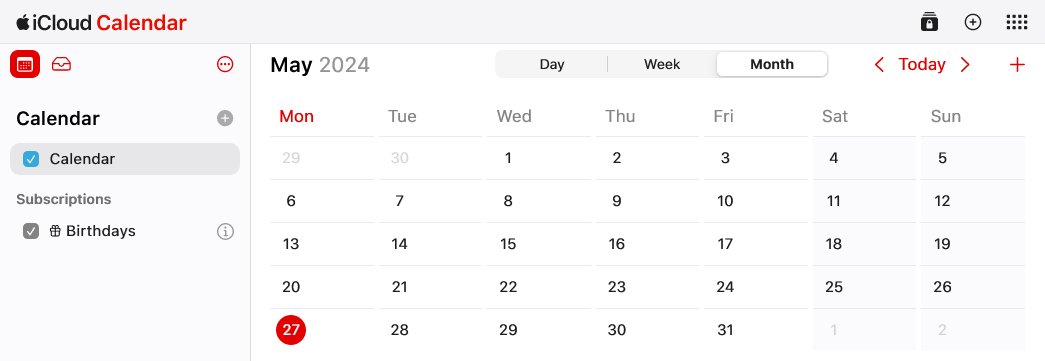
When the iPhone 15 launched with a USB-C port, I decided it was finally time to stop using a phone that was produced by an ad company and give iOS another shot. Everything went smoothly except for moving my calendars from Google Calendar to iCloud Calendar, which led to some desperate Googling and scrolling through pages of SEO-bait articles about calendar sync issues. To save as many people as I can from that hell, I’m sharing what I learned.
Missing Google calendars on iOS
You’d think you’d be able to log into your Google account in the iOS Settings app and have your calendars Just Work™. However, Google decided (long ago, as you’ll see) to make this process more difficult for some reason.
Once you add your Google account in iOS Settings > Calendar > Accounts and enable the “Calendars” sync option, the iOS Calendar app might show your primary account calendar (if you’re lucky). Any shared calendars will most likely be missing. To fix this:
- Open https://www.google.com/calendar/iphoneselect in a browser.
- Sign in with the same Google account.
- Check all the calendars you want to access from iOS.
- Click Save.
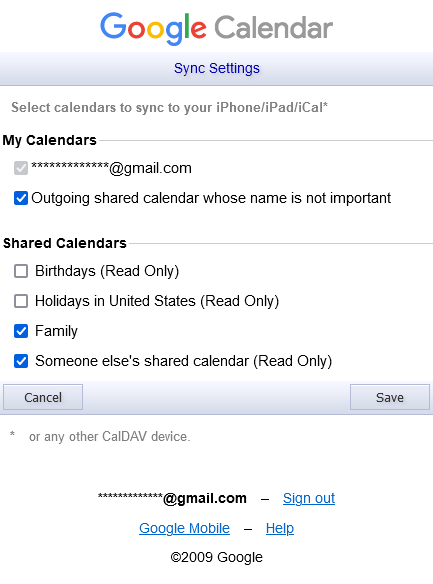
Now, when you open the iOS Calendars app and tap Calendars at the bottom, the newly-selected calendars should appear. If not, pull down to refresh the list.
Adding iCloud calendars to other software
This is where it gets weird. I decided to move my Google Calendar events to iCloud Calendar by exporting them from Google Calendar as an ICS file and then using Thunderbird to import them into iCloud Calendar. This should be easy, but Apple doesn’t let you view the iCal URL for an iCloud calendar easily. However, it’s possible to construct it yourself using the iCloud Calendar web app. Instructions here are for Firefox on Windows.
- Go to https://www.icloud.com/calendar/ and sign in.
- Open the browser developer tools (usually F12 or Ctrl+Shift+i).
- Switch to the Network tab.
- Refresh the page.
- Filter the network request list by clicking “XHR” (Firefox) or “Fetch/XHR” (Chromium-based browsers) at the top of the network panel. For Chromium-based browsers, you might need to click the filter (3 lines of descending size) icon to reveal the filter bar.
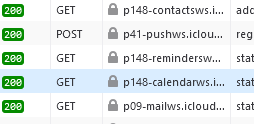
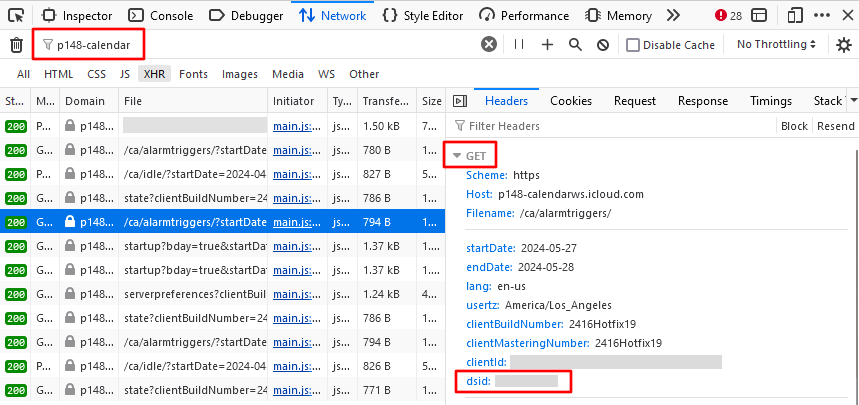
- Look for requests for domains that look like
p#-calendar, where#is a small number. There could be different numbers for Mail, Contacts, and Calendars, so make sure it has “calendar” after it! For my account, it’sp148. Note this number for later. - Click through the calendar requests until you find one with the
dsidparameter in the URL. I found it helpful to search the network log forp#-calendarto narrow down the number of requests I had to look through, and in Firefox, expanding the URL section shows each query parameter separately. It will probably be near the end of the URL and look like&dsid=XXXXXXXXXX. Note this number for later too. - Hide the calendar you want the URL for by unchecking it in the left sidebar.
- Clear the network log by clicking the trash can or cancel button, depending on your browser.
- Re-show the calendar by re-checking the box.
- Switch to the “response” tab and look through the requests for one whose response contains a
guid. This is the calendar ID, so make a note of it as well. In Firefox, you can right-click the row in the JSON view and click “Copy value”.
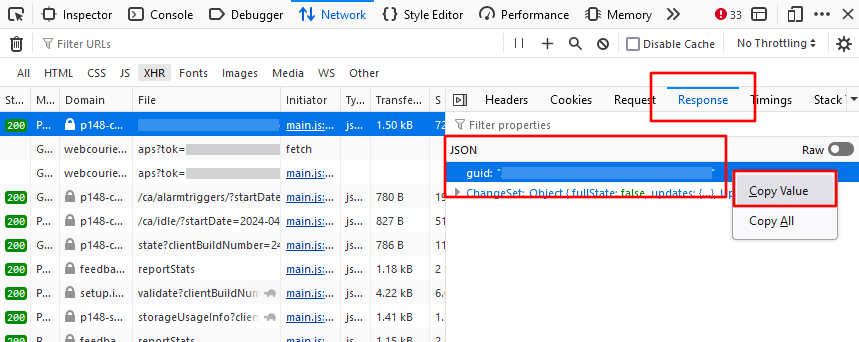
Once you have all three pieces of information, assemble them into a URL with the following format:
https://p#-caldav.icloud.com/DSID/calendars/GUID
You should be able to add your iCloud calendars to Thunderbird, Outlook, or any other application that supports the iCal standard using this URL, your Apple ID email address, and your account password (or app password if you have 2FA enabled).
Conclusion
All of this work could be avoided if Google exposed all calendars by default and Apple added a “Copy iCal URL” button to the menu for each calendar, but since when have big tech companies been in the business of making decisions that benefit the consumer?
Comments ()