Configuring a UniFi access point as a wireless gateway

If you need Ethernet network access in a location within range of your existing UniFi access points but it’s not feasible to run an Ethernet cable, you can use another UniFi access point as a WiFi “client” and then connect a wired client (or a switch connected to many of them) to the access point.
There are surprisingly few guides for this online, and all of them are missing steps or have steps out of order, so I decided to write down a process that has worked for me.
Recommended prerequisite steps
These only need to be done once before setting up any number of gateway access points, and may not be necessary depending on your goals.
Prevent the gateway AP from accepting WiFi clients
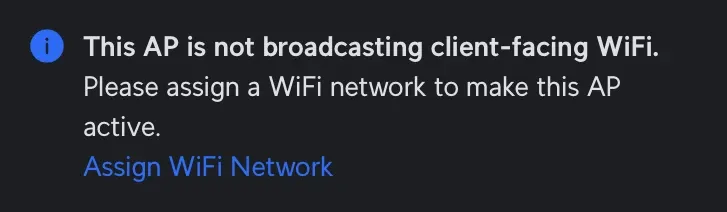
Why: If you want the new gateway access point to act as a WiFi mesh repeater and accept WiFi clients of its own, skip this step. I personally wanted to avoid having WiFi clients connect to an access point all the way in the garage with only a wireless uplink to the rest of the network (and the internet), so I chose to lock my WiFi networks to a specific access point.
How: To do this, open UniFi Network and then go to Settings → WiFi. For each WiFi network you want to lock, click the network name and then change the “Broadcasting APs” setting from “All” to “Specific”. If you have multiple access points you want to broadcast the WiFi network, it might be worth creating a group you can then select for each network.

Prevent UniFi wireless devices from connecting to the gateway AP
Why: I learned the hard way that preventing an AP from broadcasting your WiFi networks will notprevent UniFi wireless devices, such as their doorbell, from connecting to it anyway. I would personally leave them unlocked as I trust them to be smart enough to avoid choosing the gateway AP if it doesn’t offer a better connection, but I did lock mine because my gateway AP isn’t always powered on, and my doorbell was going offline for a minute or two every time I turned off the AP.
How: To avoid this, you have to go to the settings for each device in UniFi Network → UniFi Devices and enable “Lock to Access Point”, then pick an AP to lock it to.

Configuring the wireless gateway AP
- Connect the new gateway AP to network via Ethernet and power it on via PoE.
It needs to be part of the network in order to be configured. - If it’s new, adopt it.
If the AP isn’t already part of your network, go to UniFi Network → UniFi Devices and click Adopt when it shows up in the list. This might also involve a few minutes’ worth of firmware updates. - Enable meshing (uplink only) on the gateway AP.
Click on the gateway AP in the UniFi Devices list, switch to the settings tab, then scroll down and enable “Meshing”. I set mine to “Manual” and chose to only allow wireless uplinking so any other mesh devices must connect to my wired AP. - Enable meshing (at least downlink) on a wired AP.
Go back to the list of UniFi Devices and choose an AP with a wired Ethernet connection. In its settings, also enable Meshing and at least allow wireless downlinks (the gateway AP will be one!) - Assign a static IP to the gateway AP.
I think this is required because the AP can’t boot far enough to turn on its WiFi antennas without knowing its IP address, but I haven’t done enough testing or research yet to be sure. I filled mine out as follows:- IP Address: the address it had already received via DHCP
- Subnet Mask: the subnet mask of my main network (see below)
- Gateway: the IP of the router on the given network (see below)
- Preferred DNS: the gateway IP again
- Click Apply Changes and wait for the AP to receive its new configuration.
- Disconnect the gateway AP from the wired network and power it on in its new location (probably using a PoE adapter).



It will take a few minutes, but it will eventually show up as “Mesh” with a parent device:

Now you can plug an Ethernet-requiring device into the AP to connect it to the rest of your network. I’m using a PoE injector to power the AP, so I plugged my device into the “network” port of the injector, but you can also power the AP with a PoE switch and plug other devices into the switch.
Comments ()